




Coolzino Login
Use the Coolzino login when you return to our casino after registration. Signing in connects the current session with your existing player details and previous activity. You can also recover your password if you cannot access Cool Zino with the information you normally use.


Coolzino Registration
Registration opens the parts of Coolzino Casino that are not available during a casual visit. You can switch from demo games to real-money play, use the cashier, and take part in promotions offered through our casino. Your balance and activity remain connected to the same player profile when you return.
The personal area gives you a clear view of what is happening with your funds and rewards. You can follow a payment request, check the status of an active offer, and review previous transactions without asking support for routine information.
You also gain access to security and responsible gaming controls. In your profile, you can enable two-factor authentication and set the available limits for play.
How to Set Up Your Cool Zino Account?
The sign-up form has two stages:
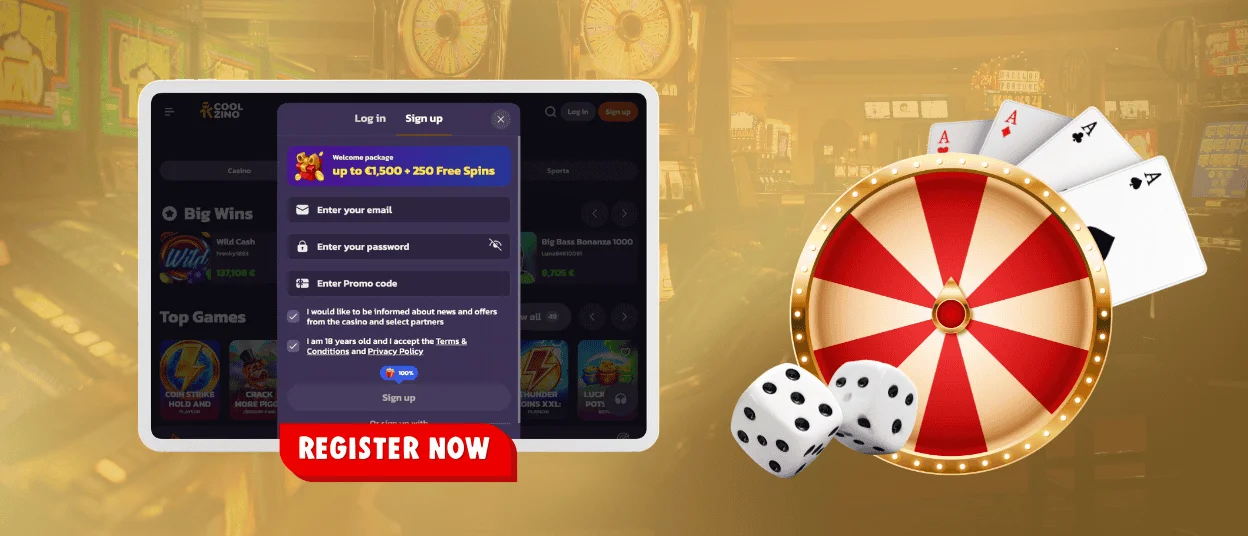
- Select “Sign Up” on the Coolzino website.
- Enter a valid email address and create a password.
- Confirm that you meet the minimum age requirement and accept the Terms and Conditions and Privacy Policy.
- Select “Sign Up” to continue.
- Enter your first name, last name, date of birth, and phone number in the second window.
- Check the information and select “Save”.
You can also join through Google. Select the “Google” button and choose the address you want to connect to Coolzino. Use the same Google profile when you return.
The first window includes a promo code field. Complete it when the terms of a particular offer require a code. You may also see an optional checkbox for news and promotional messages. Leaving this box empty will not prevent you from finishing sign-up.
Review the second form before selecting “Save”. If you notice an error after submitting the details, contact our support team so we can tell you how to correct it.
Coolzino Login and Account Management
Select “Log In” at the top of the website. Enter the email address used during sign-up and your password, then press “Login”. Players who joined through Google should choose the Google button and select the same address they used before.
After signing in, open the relevant section of your personal area:
| Section | What You Can Do |
| Cashier | Make a deposit, request a withdrawal, and review previous transactions |
| Promotions | Check an activated offer, its current status, and any remaining conditions |
| Personal Details | Review the information saved during sign-up and contact support when a detail needs correction |
| Security | Change your password and enable two-factor authentication |
| Responsible Gaming | Set the available limits and use other controls for managing your play |
Some options appear only when they apply to your activity. For example, the promotions section shows the status of an offer after you activate it, while the cashier records completed and pending payment requests.
Always sign out after using Cool Zino on a shared computer, tablet, or phone. Keep your password, recovery links, and one-time security codes private. Our support team does not need them to investigate a sign-in problem.
Common Coolzino Login Problems
If you cannot sign in, first check the information entered in the form. Many access problems can be resolved without changing your Coolzino details.
- The Login button is inactive. Check that neither field is empty.
- Your password is not accepted. Clear the field and enter it again. Make sure the letter case is correct.
- Cool Zino does not recognize your email. Check the spelling and delete any extra space copied with the address.
- Google opens the wrong account. Choose the Google profile you normally use for Coolzino.
- The login page appears again. Your session may have expired while the website was inactive. Enter your details to continue.
- A security check appears before login. Complete the check shown on the screen, then return to the sign-in form.
If the form freezes, reopen Cool Zino in your browser. Contact our support team if the issue appears again and include the message shown on the screen. Never send your password or two-factor authentication code.
Forgot Your Password?
Select “Forgot password?” below the login form and enter the email linked to your Coolzino profile. We will send a recovery link to that address.
If the email does not arrive, check the spam or junk folder and confirm that you entered the correct address. Recovery instructions can only go to the inbox already linked to your profile.
After creating a new password, enter it manually the next time you sign in. Your browser may still fill in the old one.
Use a password that you do not use elsewhere. Make sure another person cannot easily guess it.
Verification at Coolzino Casino
We may ask you to complete verification before approving a withdrawal or when an additional check is necessary. Our team compares the information saved with Coolzino with the documents you provide.
You need to provide:
- a valid passport or identity card;
- proof of your permanent residential address issued within the last six months, such as a utility bill or bank statement.
The table shows how the verification process moves from document preparation to the final result.
| Step | What You Need | Typical Time | What Happens Next |
| Step 1 – Prepare the documents | A valid passport or ID card and proof of address issued within the last six months | A few minutes | You can proceed to the upload |
| Step 2 – Upload | Complete and readable photographs or scans | A few minutes | Our team receives the documents |
| Step 3 – Review | A replacement file if a document is unclear or does not match your details | Up to 24 hours | We approve the documents or tell you what to correct |
| Step 4 – Confirmation | No further action after approval | After the review | We confirm your verification status |
Make sure each image shows the full document and that all text remains readable. Do not upload expired files, edited images, or photographs with covered details.
The information in your documents must match the details saved with Cool Zino. If we find a difference or cannot read part of a file, we will tell you what to replace. You can then upload the corrected document through the verification section.
FAQ
Is two-factor authentication available?
Yes. Two-factor authentication is available in your profile settings.
What should I do if I no longer have access to my registered email?
Contact our support team before changing your login details. We may ask you to confirm your identity before linking a new email address to your profile.
What happens if I fail the verification process?
One failed attempt does not lead to a ban. We will explain what needs correction and let you submit the documents again. Withdrawals remain unavailable until you complete verification.


